How to use Key Results
View your Objectives and Key Results.
Read these Knowledge Base articles about Committed vs Aspirational KRs, and good and bad KR examples.
Key Result types
OKR Dash supports 3 different Key Result types, each with different ways of measuring progress:
-
Numeric: the most common type (for Aspirational Key Results), this supports any numeric value including decimals and percentages. Use this for tracking metrics like conversion, page views, orders shipped and so on.
Numeric types can be increasing targets, or decreasing targets, depending on what success is for that metric.
Progress is calculated as a percentage progress towards the target. For example if the start value is 50 and the target value is 100, and you hit 65 then you've moved along 15 points, or 30% of the extra 50 needed to hit the target.
-
Delivery: used for Committed Key Results when you have a timebound deadline to hit. The "Target value" is the date you want to have it finished.
Progress is calculated as either: 100% is the KR was delivered on time, 0% otherwise. This is coloured as green if the KR was achieved, amber if it's not yet delivered, and red if the target date was missed.
-
Milestone: this is a binary "done" or "not done" Key Result. Use it when you have a simple task or output that needs to be completed but isn't timebound and can't be measured otherwise.
Progress is calculated as 100% when done, 0% when not done.
Creating Key Results
When creating or editing an Objective, type your Key Result into the input field and press Enter to add it.
To get help with phrasing of your KR, enter your draft text and press the purple sparkle button to the right of the input (or press Ctrl+Enter) to get three improved alternatives. The AI uses the Objective you've entered and any existing Key Results as context, so suggestions are relevant to what you're trying to achieve.
It checks for common issues like vague language, missing metrics, or activity-oriented phrasing, and suggests Key Results with proper types (numeric, delivery, or milestone) and targets. Read how to prompt your way to great OKRs for advanced tips.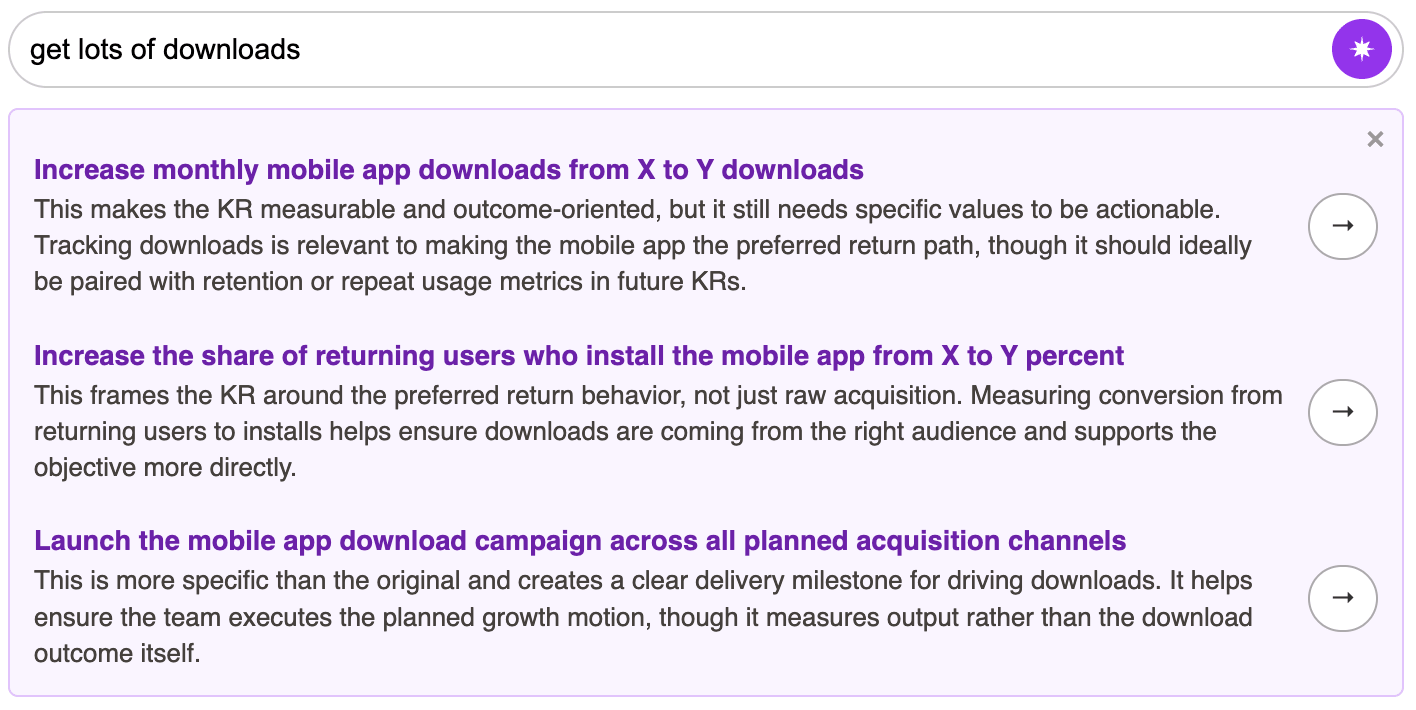
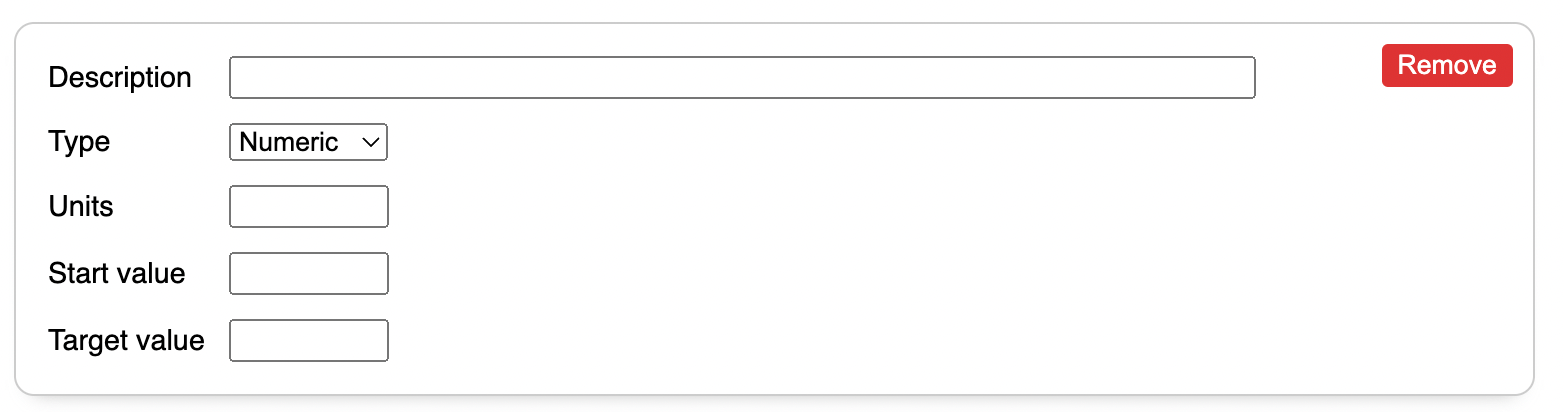
Once added, you can expand the Key Result to set the start and target values, and choose units.
Each key result has:
Description: describe the Key Result - could be a metric you're going to move, a feature you're going to ship, some discovery or learning you're going to do or another deliverable output of some kind.
Type: we support a few different types of Key Result.
Unit: for Numeric Key Result types you can specify the units the KR is measured in, for example "%" or "K" (thousands) or even "closed deals".
Start value: what is the current baseline value of the key result - for example if you're measuring a conversion rate, what is it now?
Target value: what do you want to achieve by the end of the Cycle - what does success look like this for KR?
Owner: who is responsible for this Key Result? It can be a User in your Workspace, or left unassigned. Learn more about Ownership.
Repeat this process to add as many key results as you need. We'd recommend between 3-5 Key Results per Objective, having too many can dilute the effectiveness of the OKR.
If you want to delete a Key Result while creating or editing an Objective, just click "Remove" on the side of the KR box, and then Save the OKR. Deleted Key Results cannot be recovered.
Updating your Key Results' progress
Once you've created your Key Results, you can start recording progress against them through Check-Ins. Every update will appear in the Activity Feed for your whole team to see.