How to create a Check-In
Learn more about Check-Ins and Reminders and how they work together to build positive habits.
What is a Check-in
To record progress against a Key Result (either positive or negative!) you create a Check-In. This is a record of the current value, and a description of what's happened or changed since last time.
You can create Check-Ins from the Key Result detail page, or the Notification Centre (shown on every page).
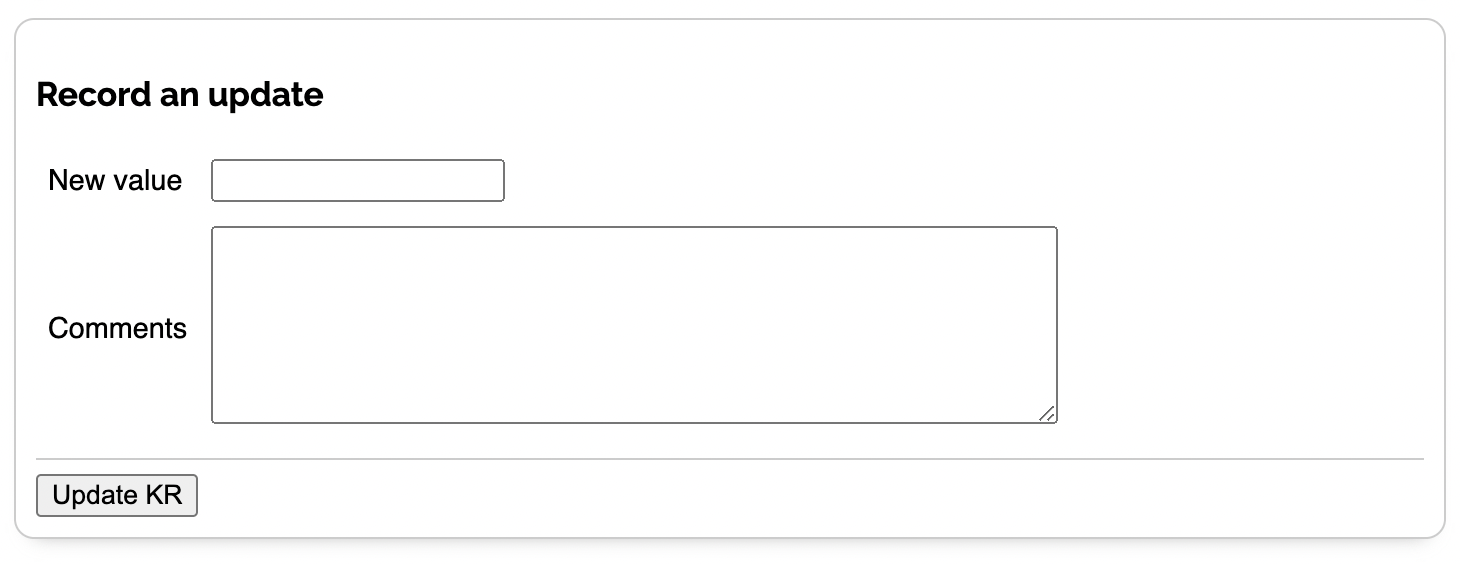
Enter the current value and a comment. Comments support text formatting so you can make your updates clear and well structured. Use bold, italic, inline code, code blocks, lists (ordered and unordered), and blockquotes to organise your thoughts.
You can also attach up to 4 images to each Check-In. This is great for sharing screenshots of dashboards, charts, designs or anything visual that helps tell the story of your progress. Images can be reordered by dragging, and removed if needed. Supported formats are GIF, PNG and JPG.
When recording updates for Delivery KRs, set the value to your current estimated delivery date. Progress and "on track" or not is calculated using this value against the target date.
Further down the same page you can see the progress history for that Key Result. Whenever you record an update, the progress is calculated against the start and target values and drawn on a graph so you can see the KR move over time:
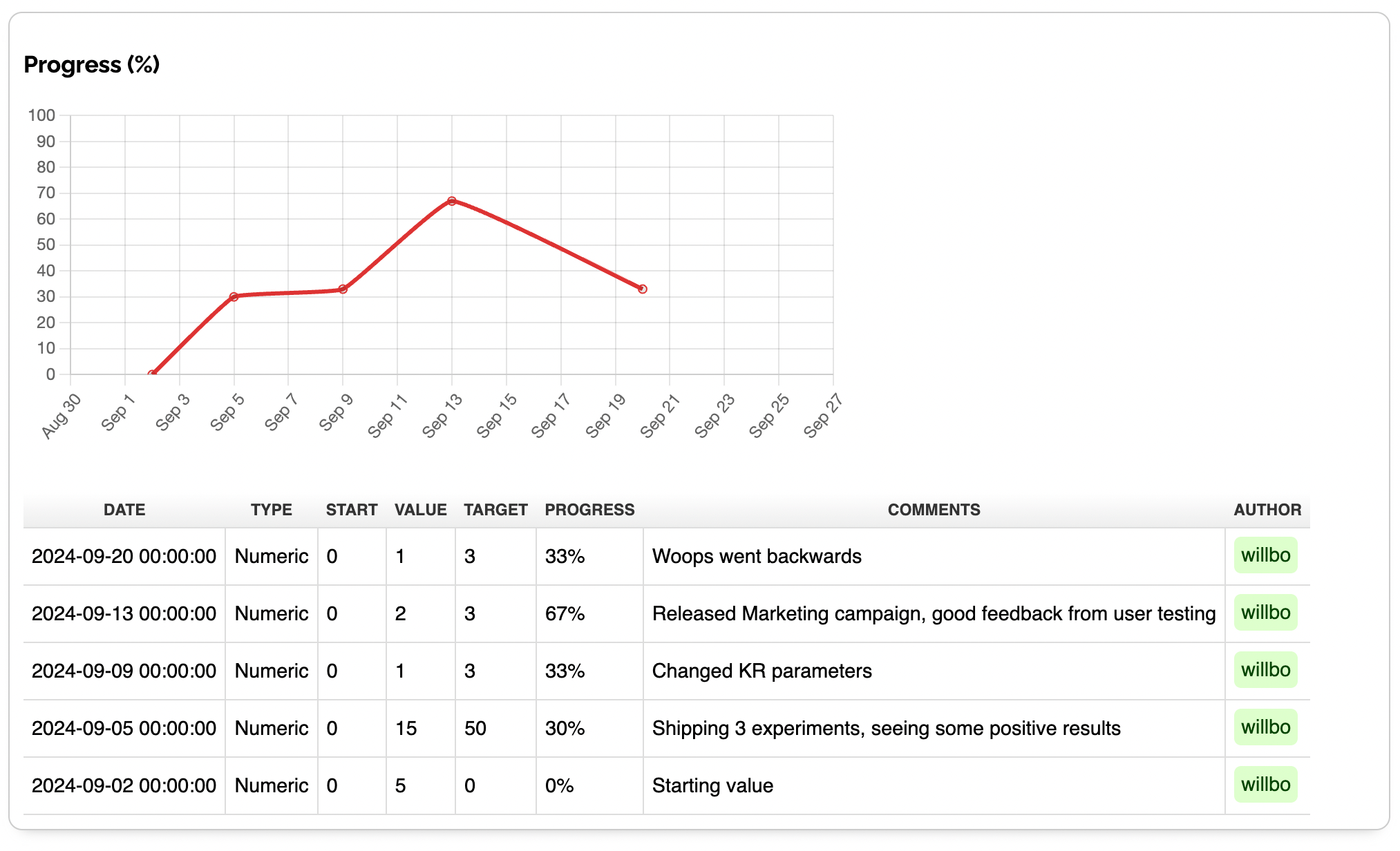
This is where the comments are super helpful. Describe what happened: what you did, what changed, why the metric has moved. Stakeholders can review progress in the Activity Feed and avoid coming to the Team to ask lots of questions because they have the answers already in front of them.
For tips on making every update count, read how to write OKR updates people actually read.
Check-Ins can be edited after they're created (by the author) in case you need to correct a value or update the comment. Edited Check-Ins are marked so others can see the update has been revised.
Multiple Check-In workflow
If you have lots of Check-Ins to complete, you can speed up the process by using the Check-In workflow, accessible from the reminder email you receive, or the Notification Centre.
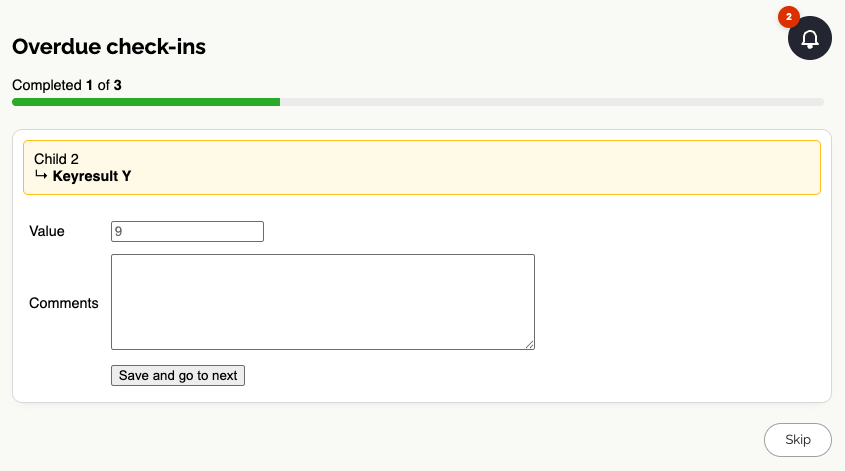
It will step you through all your overdue Check-Ins one by one, allowing you to quickly enter the current value and comment for each Key Result. You can skip any if you're not ready to update them just yet.
Once you've completed all the Check-Ins, you'll see a summary of what you've done.
Reactions and Comments
Check-Ins aren't just one-way updates — your team can interact with them too.
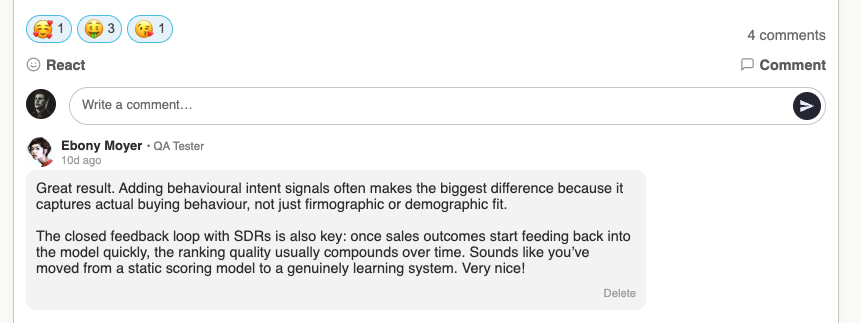
Emoji reactions let anyone quickly acknowledge a Check-In with a reaction. Click the emoji button on any Check-In to choose from a range of emoji. Each reaction shows a count and who reacted, so you can see at a glance how the team feels about the update. Clicking the same emoji again removes your reaction.
Comments allow team members to leave written replies on a Check-In. This is useful for asking questions, offering support, or celebrating progress. The author of the Check-In will receive a notification when someone comments, so they won't miss it. Comments can be edited or deleted by the author, and Workspace Administrators can delete any comment.
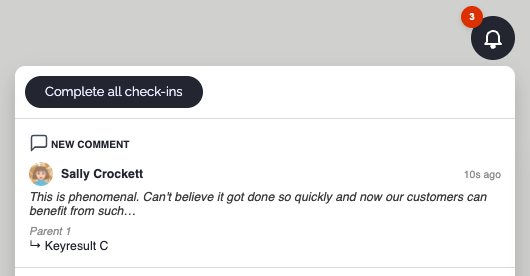
Together, reactions and comments turn Check-Ins into a lightweight conversation, keeping discussion close to the progress it relates to rather than scattered across other tools.
New Check-In highlighting
When new Check-Ins have been created since your last visit, they are highlighted with a NEW badge so you can quickly spot what's changed. A counter in the main navigation bar also shows how many new Check-Ins are waiting for you.
Once you've seen a Check-In, it's automatically marked as viewed and the badge is removed. This makes it easy to stay on top of your team's progress without having to scroll through everything.
Check-in reminders
To help keep your OKRs on track, OKR Dash has multiple mechanisms to remind people to make Check-Ins on their Key Results.
First, on-site notifications:
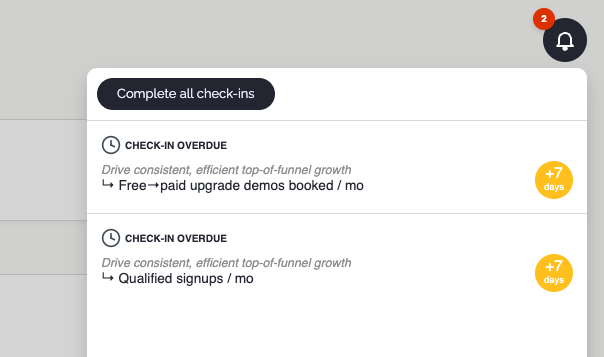
Relevant owners will see a notification badge on every page, reminding them to make Check-Ins on their Key Results that are due for an update.
Notifications are cleared immediately when a Check-In is left and are updated twice per day in case OKRs, ownership or Teams have changed.
Second, regular email reminders:
Users responsible for Key Results will receive a summary email once per week about overdue Check-Ins. The day of the week is configurable. If there are no overdue check-ins, the user won't get an email.
Third, on-site nudges.
If a Key Result goes too long without a Check-In, anyone visiting the site will see an icon to remind them an update needs to be made. Overdue Check-Ins are also highlighted in the Reporting view.
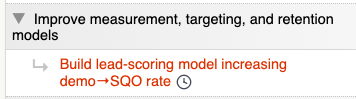
Doing this creates a shared sense of accountability around making regular progress updates.
Workspace Administrators can configure the frequency and timing of reminders in Check-In Settings.
Check-in frequency: how often you want Check-Ins, in weeks. This could be weekly, bi-weekly or monthly depending on how often you want progress updates.
Day of week: which day of the week to send reminder emails. The default is Friday - so people write their Check-Ins ready for everyone to read on Monday morning.
Who gets the reminders?
We've developed a Hierarchy Of Accountability, to reduce the potential noise around reminders, and ensure that the right people get the right nudge at the right time.
These are the rules:
If a Key Result has an owner, that User gets the reminder.
If a Key Result has no owner, the Objective owner gets the reminder.
If the Objective has no owner, any Team members assigned to the OKR get the reminder.
If none of the above, no reminder is sent for that Key Result, BUT...
If a Key Result goes too long without a Check-In, we start showing on-site nudges to everyone.